ConceptHMI Web Help
Registering ConceptHmi Licenses
To use and develop on ConceptHmi without time limitation and demo popup, you must register the ConceptHmi licenses. There are two different licenses, runtime and SDK.
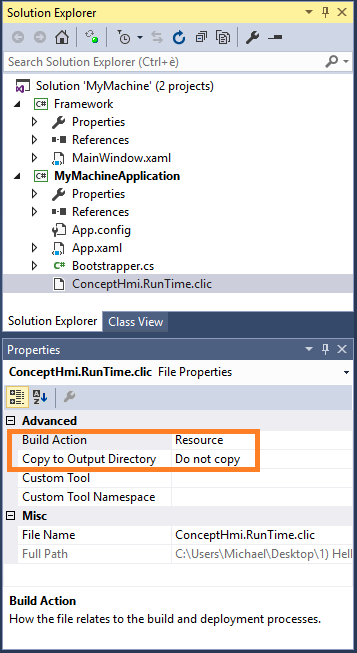
The runtime license unlocks ConceptHmi limitations during a classic execution that is to say, without Visual Studio. In this case, a runtime license must be integrated to the project of each ConceptHmi application. The file name of the runtime license is "ConceptHmi.RunTime.clic".
In each developed application, add the license file to the application project as a resource. To hide the license file in the solution, set "Copy to Output Directory" option to "Do not copy".
When the license file is added to the project, we also must load the license into Concept on application startup. To do so, you must edit the file "App.xaml.cs" of the application project and override OnStartup method. Get the license stream with GetWpfRessourceStream method and give the stream to RuntimeLicenseFileStream of ConceptLicenseUtils. It is essential to load the license before the creation of the Bootstrapper.
| OnStartup method |
Copy Code
|
|---|---|
protected override void OnStartup(StartupEventArgs e) { base.OnStartup(e); ConceptLicenseUtils.RuntimeLicenseFileStream = ConceptUtilsWpfUtils.GetWpfRessourceStream(typeof(App), ConceptLicenseUtils.RunTimeLicenseFileName); Bootstrapper boot = new Bootstrapper(); boot.Run(); } |
|
The SDK license is for the developer, it unlocks ConceptHmi limitations during a debug execution that is to say, from Visual Studio. This license is installed once and for all on the developer PC using Objectis software oStudio. The file name of the SDK license is "ConceptHmi.Sdk.clic".
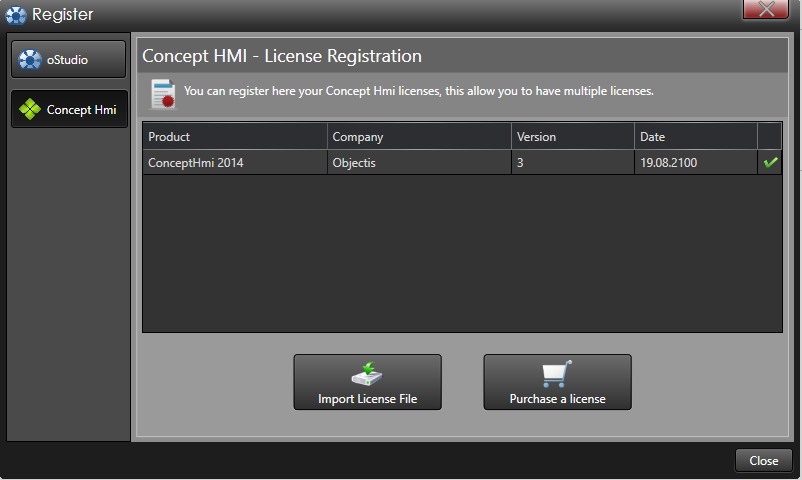
To register this license, open the oStudio software and select register in the help menu. Choose Concept Hmi in the left tab and click on "Import License File" button to select the license file from your file explorer.